Showing posts with label Android Tips. Show all posts
Showing posts with label Android Tips. Show all posts
Monday, January 14, 2013


Wednesday, July 11, 2012
Android Hidden Secret Codes
If you like this article, please share it with your friends and contacts on Google Plus, Facebook and Twitter using following buttons so that they can also enjoy the article:
NOTE: This article has been featured by many Google Android websites and magazines. AskVG.com was the first website posting these unique codes.
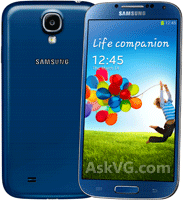
Recently I got a Google Android mobile phone "Samsung Galaxy I7500". While I'm loving playing with it, I also found some interesting secret codes which can enable/disable lots of hidden settings in the mobile phone. These codes can also show many useful information about the phone.
So in this topic, you'll get several hidden secret codes which can be used in any Google Android mobile phone to access things which are not accessible by default.
FYI These codes have been obtained by decoding various .apk files present in the phone firmware.
DISCLAIMER: This information is intended for experienced users. It is not intended for basic users, hackers, or mobile thieves. Please do not try any of following methods if you are not familiar with mobile phones. We'll not be responsible for the use or misuse of this information, including loss of data or hardware damage. So use it at your own risk.
*#*#4636#*#*
This code can be used to get some interesting information about your phone and battery. It shows following 5 menus on screen:
- Phone information
- Battery information
- Battery history
- Usage statistics
- Wifi information
*#*#7780#*#*
This code can be used for a factory data reset. It'll remove following things:
- Google account settings stored in your phone
- System and application data and settings
- Downloaded applications
It'll NOT remove:
- Current system software and bundled applications
- SD card files e.g. photos, music files, etc.
PS: Once you give this code, you get a prompt screen asking you to click on "Reset phone" button. So you get a chance to cancel your operation.
*2767*3855#
Think before you give this code. This code is used for factory format. It'll remove all files and settings including the internal memory storage. It'll also reinstall the phone firmware.
PS: Once you give this code, there is no way to cancel the operation unless you remove the battery from the phone. So think twice before giving this code.
*#*#34971539#*#*
This code is used to get information about phone camera. It shows following 4 menus:
- Update camera firmware in image (Don't try this option)
- Update camera firmware in SD card
- Get camera firmware version
- Get firmware update count
WARNING: Never use the first option otherwise your phone camera will stop working and you'll need to take your phone to service center to reinstall camera firmware.
*#*#7594#*#*
This one is my favorite one. This code can be used to change the "End Call / Power" button action in your phone. Be default, if you long press the button, it shows a screen asking you to select any option from Silent mode, Airplane mode and Power off.
You can change this action using this code. You can enable direct power off on this button so you don't need to waste your time in selecting the option.
*#*#273283*255*663282*#*#*
This code opens a File copy screen where you can backup your media files e.g. Images, Sound, Video and Voice memo.
*#*#197328640#*#*
This code can be used to enter into Service mode. You can run various tests and change settings in the service mode.
WLAN, GPS and Bluetooth Test Codes:
*#*#232339#*#* OR *#*#526#*#* OR *#*#528#*#* - WLAN test (Use "Menu" button to start various tests)
*#*#232338#*#* - Shows WiFi MAC address
*#*#1472365#*#* - GPS test
*#*#1575#*#* - Another GPS test
*#*#232331#*#* - Bluetooth test
*#*#232337#*# - Shows Bluetooth device address
*#*#8255#*#*
This code can be used to launch GTalk Service Monitor.
Codes to get Firmware version information:
*#*#4986*2650468#*#* - PDA, Phone, H/W, RFCallDate
*#*#1234#*#* - PDA and Phone
*#*#1111#*#* - FTA SW Version
*#*#2222#*#* - FTA HW Version
*#*#44336#*#* - PDA, Phone, CSC, Build Time, Changelist number
Codes to launch various Factory Tests:
*#*#0283#*#* - Packet Loopback
*#*#0*#*#* - LCD test
*#*#0673#*#* OR *#*#0289#*#* - Melody test
*#*#0842#*#* - Device test (Vibration test and BackLight test)
*#*#2663#*#* - Touch screen version
*#*#2664#*#* - Touch screen test
*#*#0588#*#* - Proximity sensor test
*#*#3264#*#* - RAM version
NOTE: All above codes have been checked on Google Android phone Samsung Galaxy I7500 only but they should also work in other Google Android phones.
Other similar articles that may interest you:
CYANOGEN GO Launcher EX Theme
Free Cyanogen for GO Launcher EX theme
Please don´t forget to RATE and post Comments. Thanks !
Cyanogen Theme for GO Launcher EX. You don´t need to root, update firmware or anything like that to get the look of the best rom firmware in the moment - the CYANOGEN MOD ! Over 560 icons. PINK and PURPLE STYLE also available in my other apps.
.-===[ ICONS AUTHOR AUTORIZATION ]===-.
Thanks to XDA Member: Jordan Fritzsche the author of the Cyanogen full icon set. Without him this theme would never be possible. You can visit his link bellow where he post new icons.
You can visit his thread at this link:http://forum.xda-developers.com/showthread.php?t=793634
.-=[ MATCHING THEMES AVAILABLE FOR ]=-.
- GO SMS PRO
- GO LOCKER
- GO LOCKER
You can find the matching themes in my other APPs in Android Market.
.-=[ MORE FROM DEVELOPER ]=-.
Click my name profile to view all my Android APPs and themes for GO Launcher EX, GO SMS PRO, GO CONTACTS EX. Download also my FREE GLASS theme now...
.-===[ REQUIREMENTS ]===-.
Needs latest version of GO Launcher EX installed to apply the theme. This APP is free and available throught Android Market.
.-===[ APP2SD CARD ]===-.
Yes. Must have Android OS 2.2 (Froyo) or Up.
.-=[ APPLYING THE THEME ]=-.
1) In GO Launcher EX press the phone menu button;
2) Select the THEME option;
3) From the Theme listing select the theme you´ve just download and installed;
4) Select APPLY;
2) Select the THEME option;
3) From the Theme listing select the theme you´ve just download and installed;
4) Select APPLY;
.-=[ APPLYING THE WALLPAPERS ]=-.
1) In GO Launcher EX press the phone menu button;
2) Select the Wallpaper option;
3) Select the Cyanogen Wallpapers option;
4) Select desired wallpaper and click Set Wallpaper;
2) Select the Wallpaper option;
3) Select the Cyanogen Wallpapers option;
4) Select desired wallpaper and click Set Wallpaper;
.-=[ ABOUT BIG ICONS ]=-.
ONLY WORKS on GO LAUNCHER EX 2.60 or bellow.
Exclusive BIG ICONS, total of 130 SUPER BIG ICONS to be used on the home screen, 60% bigger as seen on screenshots.
In the FREE Cyanogen Theme theres only 30 BIG ICONS, some of my themes have now BIG ICONS. Look at the sixty screenshot to see how the BIG ICONS look on the desktop screen, Amazing Beautifull !!!
BIG ICONS tested to work on HDPI / MDPI / LDPI phones, tested on Motorola Droid/Milestone and Xperia Minis. Even works on Tablets (tested on Samsung Galaxy 10.1 and Motorola Xoom).
Looks WONDERFULL must see !!! A picture is worth a thousand words, this is totally true with BIG ICONS !
.-=[ CUSTOMMER SUPPORT ]=-.
If you need any help with this APP or wish to contact me, send me an email. I try to reply emails daily, if not possible I´ll reply in no more than 48hs. I do not reply emails in weekends, emails are replied from Monday - Friday.
.-=[ ABOUT REFUNDS ]=-.
Refunds are available for 15 minutes, if you wish to cancel the order do it during this time. If this is a free theme or APP you can cancel and try again several times. If it´s a paid application and you cancel it, the second time you order it no refund will be available.
.-=[ DOWNLOADS ARE NOT COMPLETING? ]=-.
Please, sometimes the Android Market servers becomes really slow with so many requests, if this happen you can try another time. I have no control over this issue. Some patience is required when it happens.
.-=[ COMMENTS AND RATINGS ]=-.
To help other customers, your comments and ratings are welcome and I apreciate it. Also, if you need any assistance, please contact me first before posting offensive comments. It´s better to have a help from a developer than avoid him and leaving negative public feedbacks.
.-=[ UPDATES ]=-.
All my themes are updated on a regular base to improve the theme with new features like more icons, wallpapers, etc. Requests for new icons are welcome.
.-=[ ALSO WORKS WITH ]=-.
Icon pack Also compatible with Launch-X.
.jpg)
.jpg)
.jpg)
.jpg)

.jpg)
.jpg)
.jpg)
How To Change Android App Icon
Let you customize your home screen shortcut icons!
You can change SHORTCUT ICONs with Icon Changer for Android.
1) What is this application for?
Even you like some applications, sometimes you don't like THE ICON for the app, do you agree? Now, you can change the unsuit icons if you install iconchanger. Of cource you can change iconchanger's icon if you don't like it:D
Even you like some applications, sometimes you don't like THE ICON for the app, do you agree? Now, you can change the unsuit icons if you install iconchanger. Of cource you can change iconchanger's icon if you don't like it:D
2) How effective is this app?
You don't need to see ugly icons anymore on your home screen. You can create designed home screen with iconchanger. It can choose icons from million icons from our icon packs, there are countless iconpacks on the Google Play Store. All the icon packs are FREE.
You don't need to see ugly icons anymore on your home screen. You can create designed home screen with iconchanger. It can choose icons from million icons from our icon packs, there are countless iconpacks on the Google Play Store. All the icon packs are FREE.
3) Why you need to change shortcut icon?
Because you can love your phone more and more, if you make your own screen. For example, you can spread your children pictures, family pictures, and your pets pictures.
Because you can love your phone more and more, if you make your own screen. For example, you can spread your children pictures, family pictures, and your pets pictures.
4) Where can you find your suit pictures?
Let's say you love Lady Gaga! You can download Lady Gaga's pictures from internet, Google Images, Yahoo Images, Pinterest, Instagram, and so on. Then now, you can change the pictures to shortcut icons.
Let's say you love Lady Gaga! You can download Lady Gaga's pictures from internet, Google Images, Yahoo Images, Pinterest, Instagram, and so on. Then now, you can change the pictures to shortcut icons.
5) When to start change shortcut icons?
Download it right now! Then you can enjoy making your own home screen.
Download it right now! Then you can enjoy making your own home screen.
Features:
-You can make invisible shortcut! but be careful;)
-You can search icon packs on Google Play Store.
-You can make your own icons from your photo galary, or download from internet.
-Installed applications can be a shortcut icon.
-You can make invisible shortcut! but be careful;)
-You can search icon packs on Google Play Store.
-You can make your own icons from your photo galary, or download from internet.
-Installed applications can be a shortcut icon.
TODO:
-change bookmark shorcut icon.
-Search from internet images.
-Make more creative icons.
-change bookmark shorcut icon.
-Search from internet images.
-Make more creative icons.
Please give us any ideas!
Please contact us with any reason.
We are waiting to hear from you.
Please contact us with any reason.
We are waiting to hear from you.
We tested on G1, magic, Droid, ZTE Racer, Nexus One, HTC EVO, Nexus S, Xperia arc, LG Optimus S, LG Optimus Pad, Galaxy Nexus, Photon. but some people report iconchanger does not work on even these devices. if you see any error, please email us more detail. We are really hopping to fix the issue.

.jpg)
.jpg)
.jpg)
.jpg)
How to Change Boot Animation
The boot animation is the first thing that you see when powering on your Android phone or tablet, after the operator or manufacturer logo. Although it does not serve a purpose functionally, an eye-catching boot animation can certainly make your device stand out while booting. In this third installment of our Android customization series, we will take a look at how to change or even create your Android boot animation and will feature some of the prettiest and geekiest boot animations we have come across.


The pathnames and filenames may be different for you, so please check that first before asking (Using 480x800_AndroidGlow1.zip as an example file)
Featured Boot Animations
There are hundreds of boot animations out there for a range of device resolutions. Some of them come as stock with certain devices and get extracted by users to be made available for others to install on their devices, while others are custom built by users and shared with the community.
As promised, we are featuring here a few boot animations that caught our eye.
The Droids series by Dysgenic:


Android Particle Ring by Dysgenic (Modified by aph):


Android BIOS by frysee:
This one has both a phone version and a tablet version. The preview shown is of the tablet version.

Honeycomb by Google:

Click the above image for a full animated preview.
ADB
- Install the android SDK
- Open Command Prompt
- Locate the SDK tools folder where ADB is located (example: <cd c:\android-sdk-windows\tools>)
- Now enter the following code in Command Prompt
Quote:
adb remount
adb push c:\temp\480x800_AndroidGlow1.zip /data/local/bootanimation.zip
adb reboot
Terminal Emulator
- Connect your phone to your computer via USB
- Copy the downloaded file to your sdcard
- Disconnect phone from computer
- Open Terminal Emulator on your phone and enter the code below (press enter after every line)
Quote:
su
cp /sdcard/480x800_AndroidGlow1.zip /data/local/bootanimation.zip
reboot
Root Explorer
- Connect your phone to your computer via USB
- Rename the downloaded file to 'bootanimation.zip' and copy to your sdcard
- Disconnect phone from computer
- Open 'Root Explorer'
- Copy/Paste the /sdcard/bootanimation.zip to /data/local/ (make sure it's read/write)
- Reboot


